OverlayCraft Atelier
How to Add a Countdown Timer (Step-by-Step)
A plain-language, step-by-step guide to add a countdown timer - follow along and you'll be done in a few minutes.
The quick answer
To add a countdown timer: Use a countdown widget from your alert tool or a free timer site, then work through the steps below. The whole thing takes a few minutes and needs no design software - if you can drag a file into OBS, you can do this.
Step-by-step
- Use a countdown widget from your alert tool or a free timer site.
- Add it as a Browser Source in OBS.
- Place it on your Starting Soon or BRB scene.
- Set the target time before you go live.
Make it match your brand
Pair it with an animated Starting Soon screen so the wait feels intentional. A stream reads as professional when every piece agrees - the same fonts, the same palette, the same mood. If you're building your look from scratch, a complete animated overlay pack gives you matching screens, frames, alerts and panels in one download.
FAQ
No. This is a drag-and-drop process in OBS or your alert tool. Ready-made packs give you the art; you just place it.
Gear up
Packs From This Guide
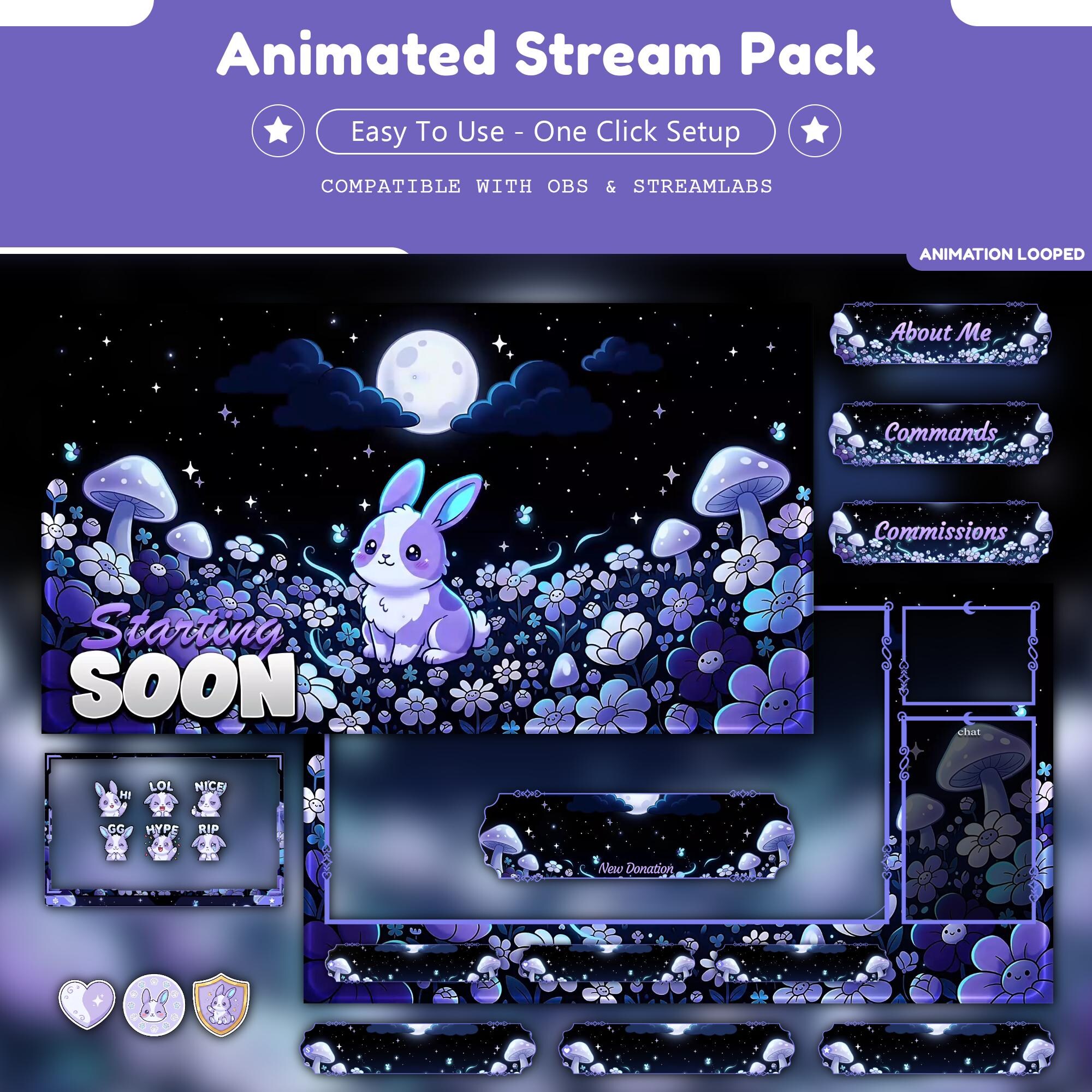
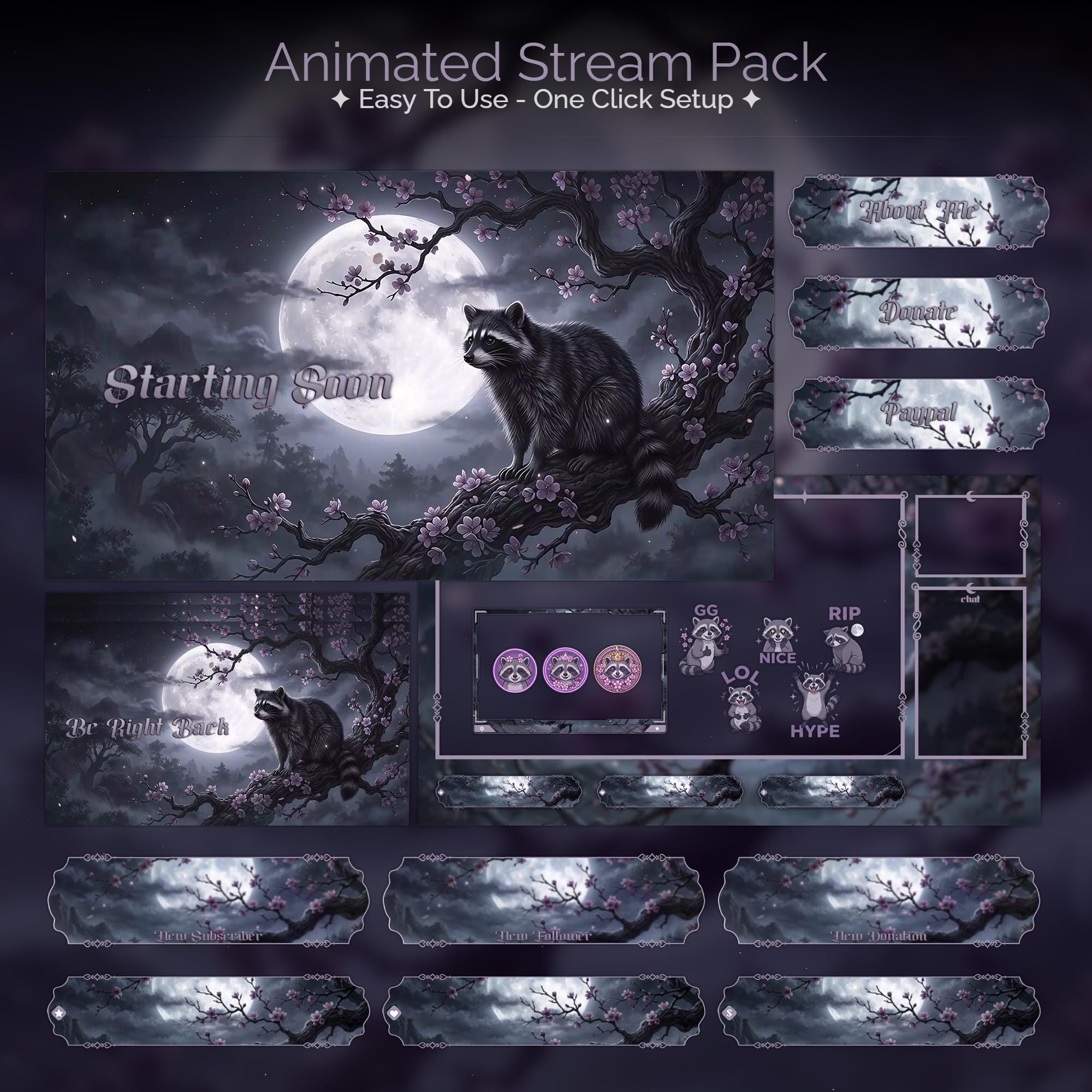
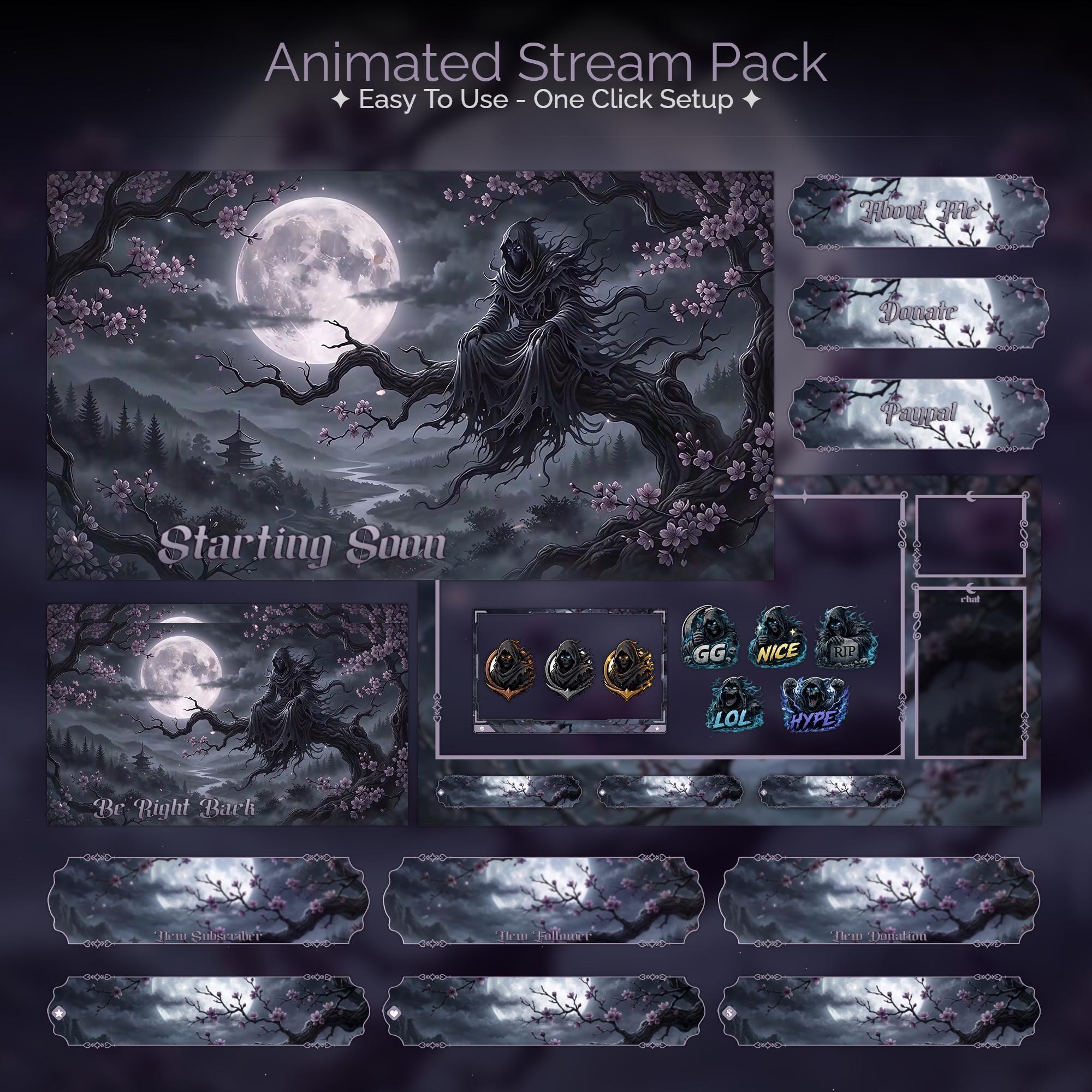
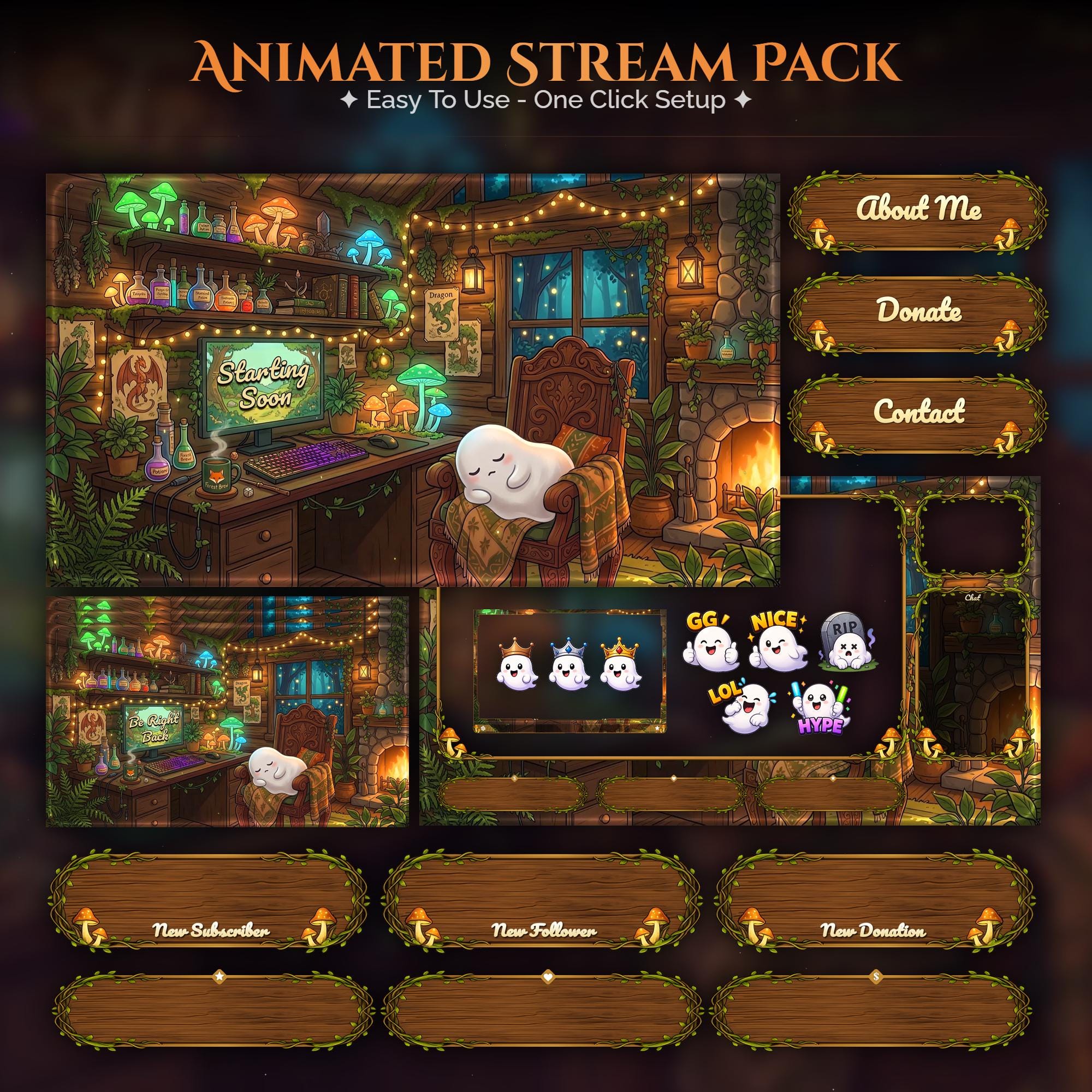
Ready to make your stream feel like a place?
127 animated overlay worlds - real preview videos on every pack, instant download, OBS-ready.