OverlayCraft Atelier
The Complete Stream Overlay Setup Guide for Twitch, YouTube & Kick in 2026
Setting up professional stream overlays seems complicated. It’s not.
Everything you need to know about transforming your stream from amateur to professional in 30 minutes
Setting up professional stream overlays seems complicated. It’s not.
I’ve helped hundreds of streamers transform their channels with professional graphics, and today I’m sharing everything you need to know about stream overlay setup in 2026.
What Are Stream Overlays?
Stream overlays are graphics that appear on top of your video feed during a live stream. They include:
- Starting Soon screens: What viewers see before you go live- In-game overlays : Frames and graphics during gameplay- BRB/Intermission screens: When you step away- Animated alerts : Notifications for follows, subs, donations- Webcam frames : Borders around your camera feed- Panels : Graphics for your channel page- Stream labels : Follower count, subscriber count, etc.
Professional overlays make you look legitimate and help you stand out from the 10 million+ other streamers online.
Why Free Overlays Don’t Cut It Anymore ?
Here’s the truth about free stream overlays:
Limited customization : Everyone uses the same templates Low quality : Often 720p or static-only No support : You’re on your own if something breaks Generic design : Doesn’t match your brand Limited formats: May not work with your software
In 2026, viewers can instantly spot a free overlay. It signals “amateur” before you even start talking.
What Makes a Professional Overlay Package
A complete professional package should include:
Essential Screens (Animated):- Starting Soon screen (builds anticipation)- BRB/Intermission screen (keeps viewers engaged)- Ending screen (professional sign-off)- Offline screen (when you’re not live)
In-Stream Graphics:- 2 - 3 webcam frame options- Multiple in-game overlay variations- Transition stinger (smooth scene changes)
Animated Alerts (Critical for engagement):- New follower alert- Subscriber alert- Donation/bits alert- Raid alert- Host alert
Channel Graphics:- 20 - 30 custom panels (About, Schedule, Donate, Socials)- Stream labels (follower count, latest sub, etc.)- Social media banners (Twitter, YouTube, Discord)
Technical Requirements:- 1920x1080 resolution (Full HD)- high fps animations (smooth, no lag)- WEBM format (transparent backgrounds)- PNG alternatives (for static elements)
A quality package should have 30 - 50 items minimum.
Step-by-Step Setup Tutorial
What You’ll Need:- OBS Studio or Streamlabs (free)- Your overlay package files- 30 minutes of time
Installation Process:
Step 1: Download Your Overlay Package
Purchase a professional package from a trusted source. I recommend Purple Stream Package : https://vectorkingstudio.etsy.com that include everything listed above.
Step 2: Organize Your Files
Create folders: Stream Overlays/ ├── Screens/ ├── Alerts/ ├── Webcam/├── Panels/└── Labels/
Step 3: Import to OBS/Streamlabs
For Starting Soon Screen:1. Create new scene: “Starting Soon”2. Add Source → Image (for static) or Media Source (for animated)3. Browse to your file4. Resize to fit screen (1920x1080)
For Alerts:1. Add Source → Browser Source2. Import your alert files3. Set trigger conditions (new follower, sub, etc.)4. Test each alert
For Webcam Frame:1. In your main scene, add Source → Image2. Select webcam frame file3. Position above your webcam source4. Adjust size to frame your camera
For In-Game Overlay:1. Add Source → Image2. Select overlay file3. Position elements around game capture4. Lock layers so they don’t move
Step 4: Configure Alerts
Most packages include instructions for:- Setting sound effects- Adjusting duration (3 - 5 seconds recommended)- Customizing text (follower name, message)- Testing triggers
Step 5: Add Stream Labels
1. Connect to Twitch/YouTube API2. Add Browser Source3. Import label files4. Set update interval (5 - 10 seconds)
Step 6: Test Everything
Before going live:- Switch between all scenes- Trigger test alerts- Check for audio issues- Verify webcam frame alignment- Test transitions
Common Mistakes to Avoid
Overcrowding: Don’t use every element at once. Less is more.
Wrong resolution: Always use 1920x1080 for streaming. Lower resolutions look pixelated.
Ignoring brand consistency: Your overlays, panels, and social media should match.
Static-only: In 2026, viewers expect animations. Static overlays look outdated.
No testing: Always test alerts before going live. Nothing worse than broken alerts during stream.
Using low fps animations: Looks choppy. Always use high fps for smooth motion.
Platform-Specific Considerations
Twitch:- Panels are crucial (viewers check your About section)- Alerts should match Twitch emote aesthetic- Purple color schemes perform well
YouTube:- Longer intermission screens (viewers more patient)- Include channel subscribe reminder- Red/white color schemes
Kick:- Emerging platform, less competition- Green branding works well- Similar setup to Twitch
TikTok Live:- Vertical format (1080x1920)- Minimal overlays (mobile viewers)- Bold, readable text
Where to Get Professional Overlays
You have three options:
1. Hire a custom designer ($100 - 200)- Fully unique- Exactly matches your vision- Takes 1 - 2 weeks- Expensive
2. Use free templates ($0)- Generic- Everyone uses them- Limited customization- Looks amateur
3. Buy professional packages ($30 - 60)- High quality- Instant download- Customizable- Best value
For most streamers, option 3 is the sweet spot. You get professional quality without the custom designer price tag.
I create comprehensive packages specifically designed for streamers who want to look professional without breaking the bank. 60+ Animated Stream Package : vectorkingstudio : each includes 60+ items, high fps animations, and lifetime support.
Advanced Tips for 2026
Use multiple theme options:Have 2 - 3 overlay sets to rotate. Keeps stream fresh.
Match your game: Cyberpunk overlays for Cyberpunk 2077, cozy overlays for cozy games.
Seasonal updates: Halloween themes in October, Christmas in December.
Vertical overlays for TikTok: Don’t just reuse your Twitch overlays.
Stinger transitions: Smooth scene changes look incredibly professional.
Consistent branding: Use same color scheme across overlays, panels, and social media.
Maintenance & Updates
Your overlay setup isn’t “set it and forget it.”
Quarterly updates:- Refresh seasonal overlays- Update follower goals- Check for broken alerts- Test new animations
When to upgrade:- Hit affiliate/partner (celebrate with new package)- Rebrand your channel- Change content focus (variety to just chatting)- Current overlays look dated (1 - 2 years old)
ROI: Does It Actually Matter?
Real talk: Professional overlays won’t make you instantly famous.
But they do:- Increase average viewer duration (15 - 25% in my experience)- Improve first impression (viewers decide in 8 seconds)- Look legitimate to sponsors/brands- Make you feel more confident on stream
Think of it like dressing professionally for a job interview. It won’t get you the job alone, but it definitely helps.
Conclusion
Setting up professional stream overlays in 2026 is easier than ever:
1. Purchase a comprehensive package (60+ items, high fps, multiple formats)2. Follow installation tutorial (30 minutes)3. Test everything (before going live)4. Go live looking professional
Stop using free templates that make you blend in with millions of other streamers. Invest in your stream’s visual identity.
Ready to upgrade your stream? complete overlay packages vectorkingstudio on Etsy : professionally designed, instantly downloadable, and budget-friendly.
- -
About the Author:I’m vectorkingstudio , creator of VectorKingStudio, where I design professional stream graphics for content creators worldwide. With a perfect 5.0 rating and hundreds of happy streamers, I’m passionate about helping creators look their best online.
Follow me: All links : VectorKingStudio |Youtube :@vectorkingstudio1 | Etsy Shop : vectorkingstudio | X : vectorkingstudo
Gear up
Packs From This Guide
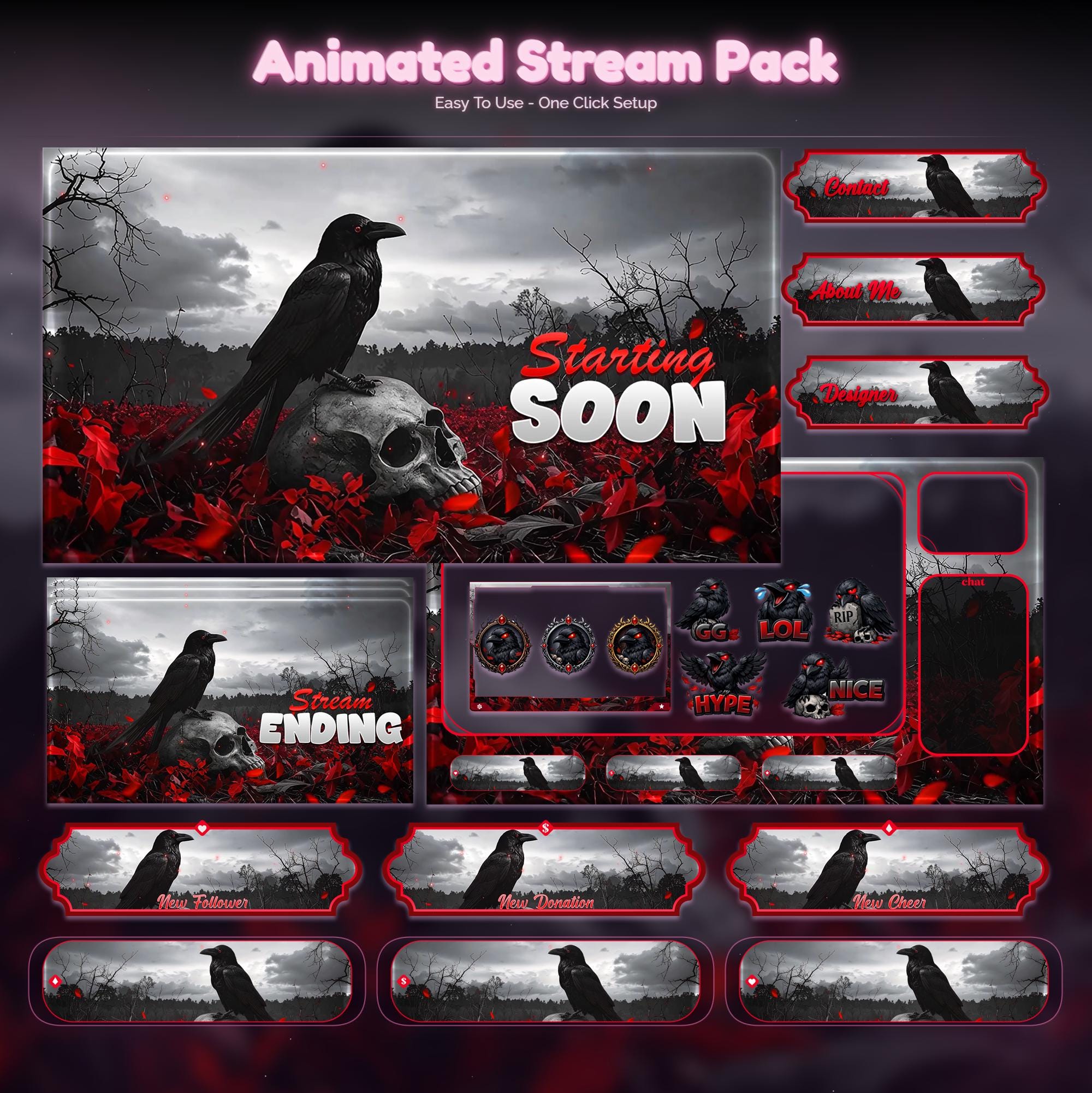
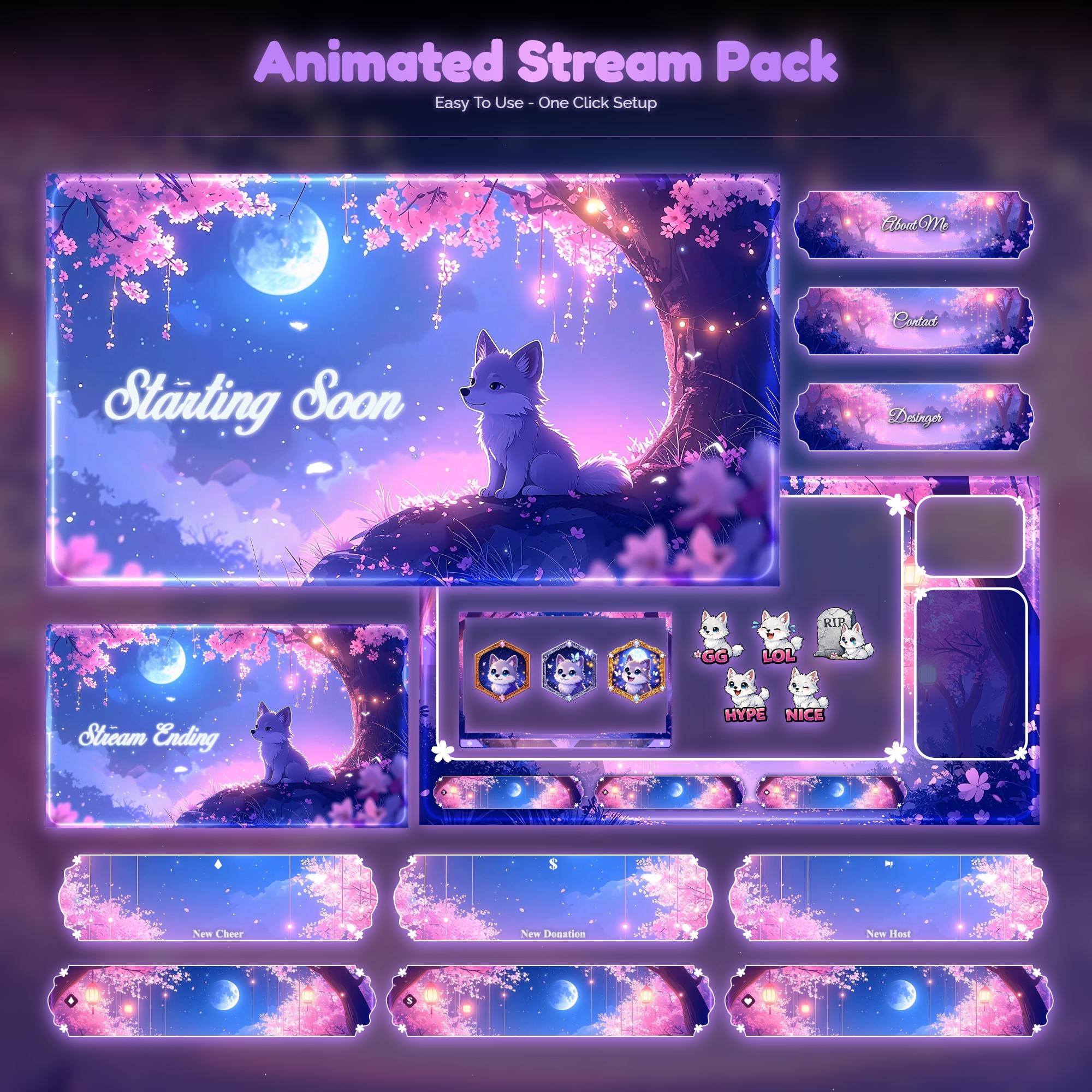
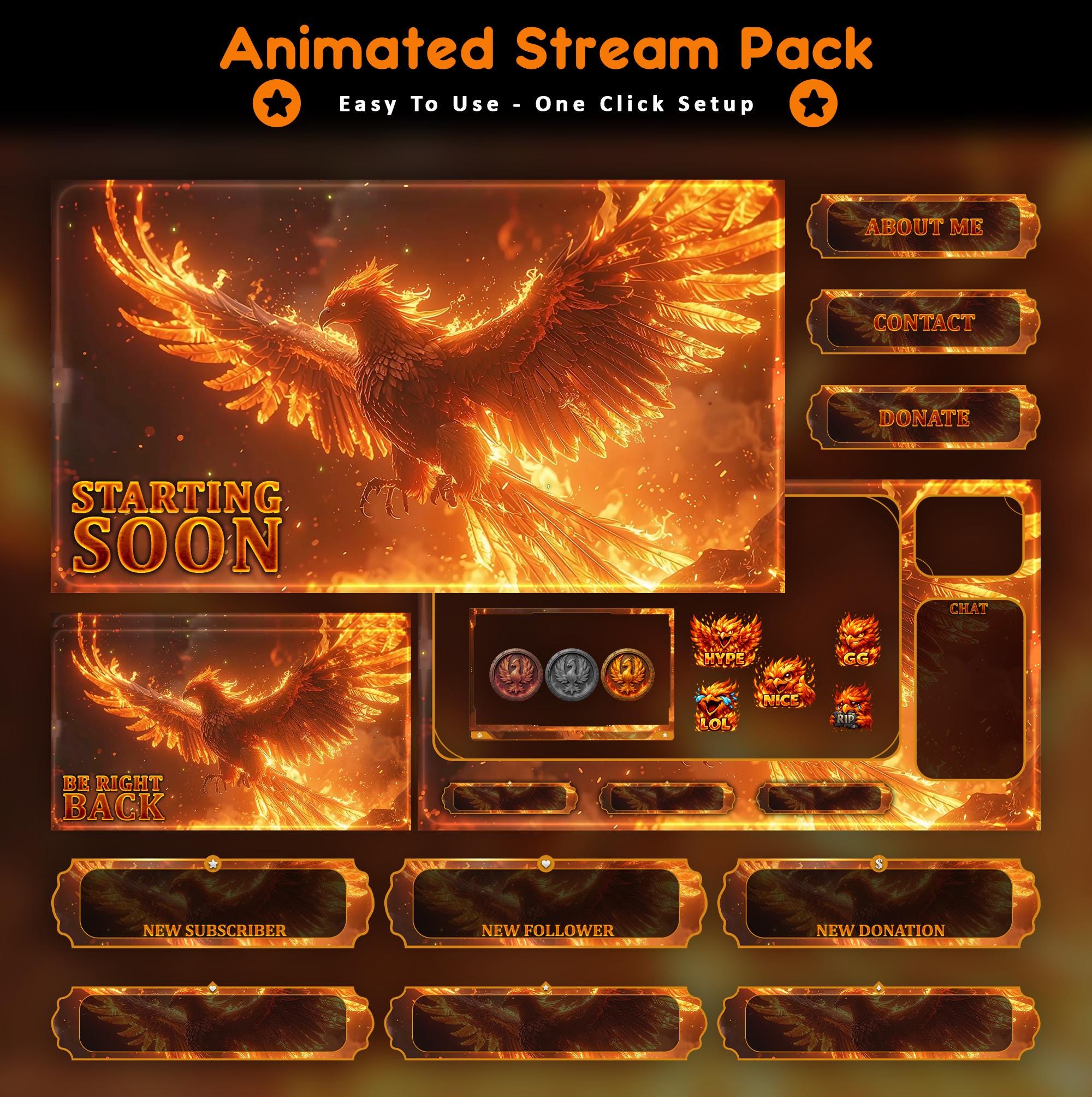
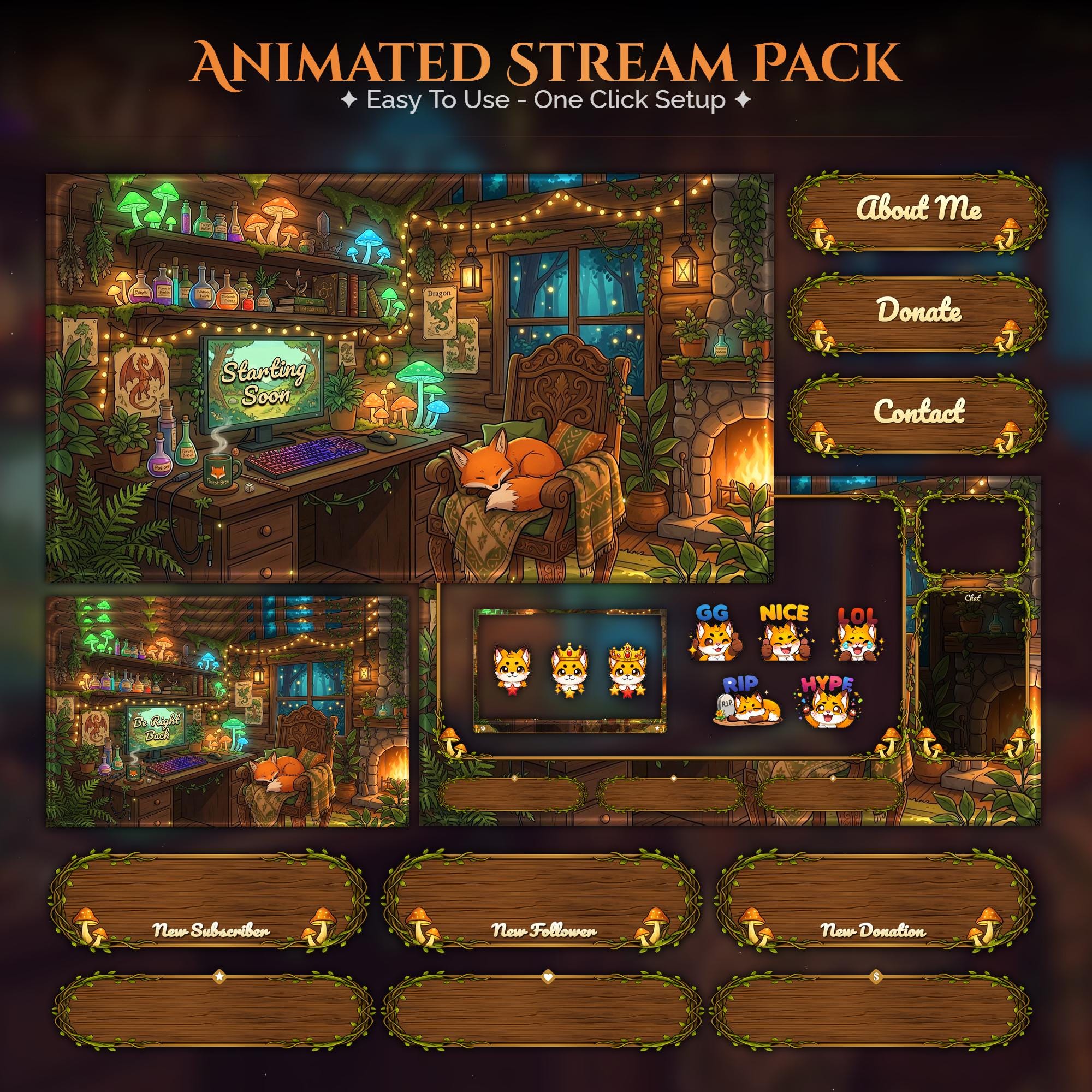
Ready to make your stream feel like a place?
127 animated overlay worlds - real preview videos on every pack, instant download, OBS-ready.